Supports iOS/iPadOS 26 and later. Users with iOS/iPadOS 18 or earlier should continue using the stable version, yaMPC 1.8.4.
New features:
- Support for iPadOS 26 Windowing, which allows the yaMPC window to be resized on an iPad.
Specification change:
- On iPad, due to window resizing support, the number of thumbnails displayed in a single row of the Albums screen is now determined by the "Cover Arts in Row" option value only, regardless of the window aspect ratio. The default value for iPad is 4.
- The “Cover Art View” option under “iPad UI Mode” has been removed.
- The default value for the "Artist Browse Mode" option has been changed from "Album Artist" to "Artist."
1. Screen Layout
The tabs now feature a Liquid Glass design inspired by iOS/iPadOS 26. Since Liquid Glass is semi-transparent and floats over content, the screen layout has been adjusted slightly. There have been no functional changes.
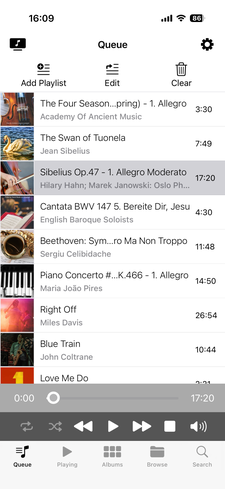
yaMPC 1.8.4 Queue

yaMPC 1.8.7 Queue
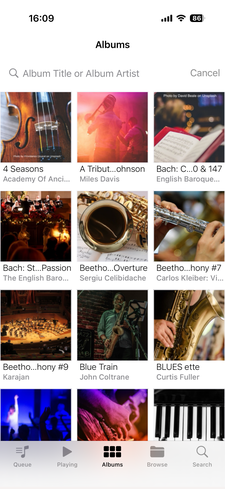
yaMPC 1.8.4 Albums
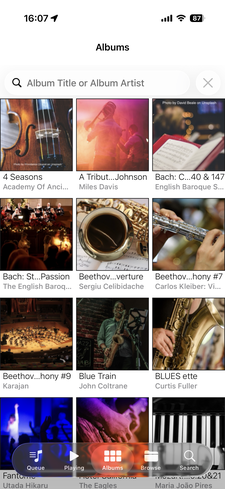
yaMPC 1.8.7 Albums
2. Window resizing
With the window management feature in iPadOS 26, you can open multiple windows and resize or rearrange them as needed, and yaMPC 1.8.7 supports this feature. Since yaMPC already supported resizing the window via the "Use iPad apps on Mac with Apple silicon" feature, we've changed its behavior on iPads so that it is fundamentally the same as on Macs.
2.1 Default iPad View
The default value for the yaMPC option "iPad UI Mode" is "Default iPad View." This widescreen layout has two panes and is designed for landscape orientation. In this mode, dragging the border between the two panes expands the right pane. Dragging the bottom right corner of the screen resizes the app window and supports multi-window operation. If the screen width becomes narrower than a certain threshold, the right pane is hidden.

Landscape Full Screen
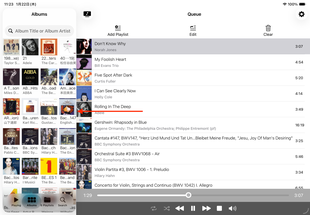
Expanding the right pane
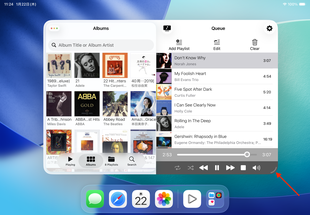
Window resizing
2.2 iPhone View
The "Default iPad View" is designed for two panes and is not suitable for the portrait position. If you primarily use your iPad in portrait or use tall windows in features like Slide Over or Split View, we recommend setting yaMPC's option "iPad UI mode" to "iPhone view."
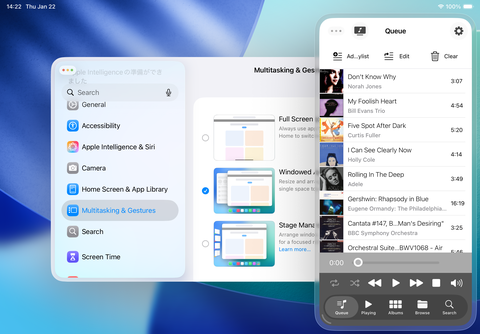
Slide Over
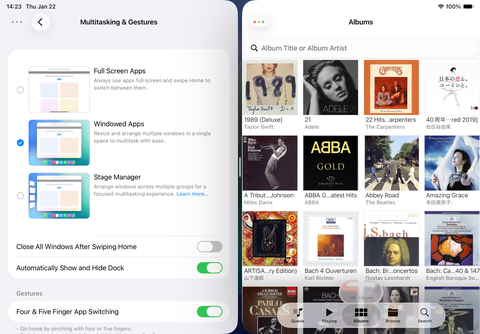
Split View
2.3 Cover Art View
Unfortunately, due to the difficulty of implementing iPadOS 26's window management, we have removed the "Cover Art View" for "iPad UI mode" in this version. We hope to bring it back in a future version if possible. By the way, yaMPC has never supported "Cover Art View" on Apple Silicon Macs.
3. Cover Art in Row
In yaMPC 1.8.4, the option “Cover Art in Row” specified the number of thumbnails displayed in a single row on the Albums screen in portrait orientation. Switching to landscape orientation displayed more thumbnails in a single row while keeping the thumbnail size the same.
However, iPadOS 26 now allows any window sizes and aspect ratios. Therefore, the specification has changed to always display the number of thumbnails set by "Cover Art in Row" in a single column, regardless of whether the device is in landscape or portrait orientation, or the window's aspect ratio. Consequently, the default value for "Cover Art in Row" on iPad has been changed to 4. Incidentally, this has always been the behavior on Apple Silicon-based Macs.
There is no change to the specification on iOS. The default value for "Cover Art in Row" on iPhone remains 3.
4. Artist Browse Mode
"Artist Browse Mode" is an option that specifies which tag to use when listing artists in the Browse screen. The default value up to yaMPC 1.8.4 was "Album Artist", which used the ALBUM_ARTIST tag. However, if the ALBUM_ARTIST tag is not entered in the song file, the artist will not be displayed. Therefore, we changed the default to use the ARTIST tag, which is used by more people. The default value for "Artist Browse Mode" in yaMPC 1.8.7 has been changed from "Album Artist" to 'Artist'.
Download yaMPC 1.8.7 form the App Store. Continue to enjoy your music with yaMPC.